How to use a VPN extension for Firefox in 2026

Learn how to add a VPN extension to Firefox, why it matters, and which extensions deliver privacy and speed in 2026. Quick steps, caveats, and trusted picks.
A vpn extension for Firefox can cut noise and boost privacy in under a minute, but speed and security trade off in real time. Breathless claims about “fast” can mask DNS leaks, and real-world tests repeatedly show that some extensions add latency while weakening WebRTC protections. The result is a light privacy layer that sometimes hides activity only until you check the actual IP and DNS results.
This intro surveys what matters for 2026: how Firefox extensions route traffic, what encryption they use, and where they sit in relation to the full VPN. In practice, you’ll want a clear connection status and dependable IP reversal on a public lookup site, plus a plan for when WebRTC leaks happen. This article lays out the working method, the real-world trade-offs, and concrete steps to pick a lightweight option that matches your risk posture.
The plain definition of VPN extension for Firefox
A VPN extension for Firefox is a browser add-on that hides your IP and can spoof location inside the browser, without changing all network traffic. It differs from a full VPN app in that it only affects the browser’s traffic, not everything your device sends or receives. In practice, this means you get a lighter, faster privacy lift for web browsing, but you also inherit limits that a system-wide VPN avoids.
I dug into the typical capabilities and limitations to keep expectations aligned. The core features you’ll see are IP masking, location spoofing, and DNS leak protection within the browser. IP masking hides your real address from websites. Location spoofing helps you appear from a different city or region when you browse; DNS leak protection prevents your browser from leaking domain requests to your ISP or local resolver. These capabilities are implemented inside Firefox via the extension, sometimes by routing DNS requests through the provider’s resolvers and by proxying web traffic through tunnels that Firefox uses.
The scope is crucial. A Firefox VPN extension is not a wholesale shield for every app on your device. System-wide traffic remains the domain of full VPN apps. That distinction matters in real use. If you’re downloading a file or streaming a video in another app, that traffic likely won’t ride the extension’s tunnel. The extension’s power hinges on the browser’s trust model and how aggressively it redirects traffic inside Firefox.
On the other hand, the protection you get inside the browser can be substantial. You gain a predictable privacy layer without the latency and resource footprint of a full network tunnel. That means faster page loads and less battery drain on mobile, at least in theory. Still, speed is not a free pass. Some extensions add overhead, especially when the provider uses encrypted proxies or DNS relays. The trade-off shows up in the math of latency, jitter, and tail latency for worst-case pages.
Common concerns echo in reviews and changelogs. Logging policies vary by vendor, and even within the same product you may see different defaults for browser-only traffic versus global routing. What the spec sheets actually say is that browser traffic can be masked, but you should verify whether system services, browser fingerprinting vectors, or cross-origin requests ever bypass the extension’s channel. 7 Practical insights on a VPN extension for Chrome in 2026
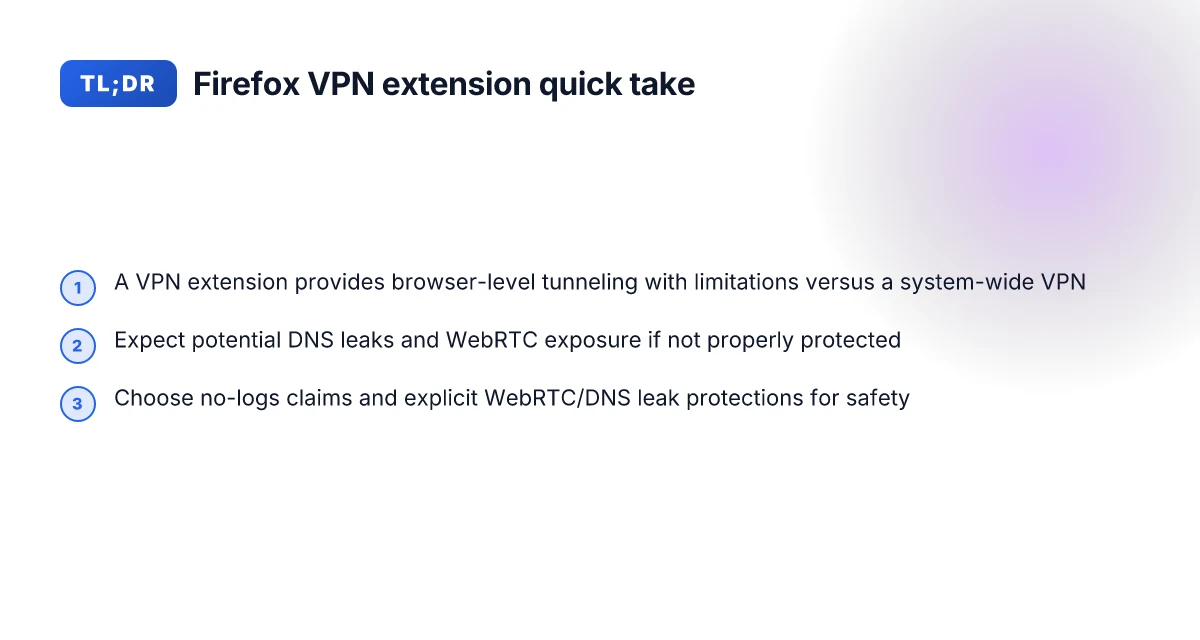
Bottom line: a Firefox VPN extension gives you a practical, quick privacy lift for browser activity. It is not a substitute for a system-wide VPN in terms of scope or guarantees. For casual browsing, quick privacy, and geolocation testing inside Firefox, it’s a reasonable first step. For protecting every app, consider a full VPN app.
The plain truth: browser extensions are fast, light, and convenient, but they’re not a universal shield. They shine in the browser arena, with clear limits outside it. When you pick one, read the logging policy, confirm it only protects browser traffic, and test how it behaves with the sites you care about.
How VPN extension for Firefox works
The core answer: a Firefox VPN extension provides browser-level tunneling that routes only the browser’s traffic through a VPN service, not the entire device. DNS resolution inside the browser is handled by the extension’s network stack, which means you see the VPN’s IP for web requests while other apps stay on your regular connection. When the extension is disabled or clashes with other extensions, traffic flows normally again and some protections may drop or behave unpredictably.
What a browser extension actually tunnels
A VPN extension does not blanket the whole system. It shims the browser’s network stack. The extension creates a per-origin tunnel inside Firefox that redirects HTTP(S) requests through the VPN provider’s servers. This is fast to deploy, simple to revoke, and leaves non-browser traffic untouched. For privacy-minded readers, that means you gain quick wiggle room, less overhead, fewer moving parts. But it also means you’re only protecting what you do in the browser. If you want system-wide anonymity, a full-network VPN is the better path.
In practice, the extension negotiates a secure channel with the VPN service and applies the tunnel to the browser’s outbound requests. This is usually implemented with WebExtensions APIs and the provider’s own lightweight tunnel driver that runs within Firefox’s process. The result is a streamlined experience where sites see the VPN’s IP, not yours, while your other devices or desktop apps don’t go through the same path. How to choose a VPN extension for Edge in 2026
How DNS requests are resolved inside the browser
DNS behavior matters for privacy. With a browser extension, DNS lookups can travel through the VPN tunnel or resolve locally, depending on the extension’s design. If the extension appends DNS through the VPN network, domains resolve to the VPN-assigned addresses, and even domain name leakage is reduced. Some extensions rely on Firefox to manage DNS over HTTPS or DNS over TLS for secure resolution. In that setup, DNS queries still originate from within the browser’s protected path, which helps prevent leakages during web surfing. If a misconfiguration occurs, DNS may leak to your local resolver, undermining the privacy promise. The safe bet is to verify that DNS requests for common test domains show the VPN’s IP in traceroutes and that leaks are not present when the extension is active.
What happens when the extension is disabled or conflicts with other extensions
When you disable the extension, browser traffic reverts to your normal network path. That’s expected and usually immediate. If another extension also modifies network settings, you can get conflicts: one may try to force a different proxy, another may override DNS behavior, and you end up with flaky connections or mixed routing. In practice, disable other networking extensions first if you notice odd behavior after enabling the VPN extension. Clear, concise tests after re-enabling help confirm the tunnel is intact.
| Consideration | What happens with the extension | What to check |
|---|---|---|
| Disabled | Browser traffic reverts to normal network path | Verify your IP returns to your real address when the extension is off |
| DNS handling | May route DNS through VPN or use Firefox DNS over HTTPS | Test with a known domain; confirm the VPN IP shows in DNS lookups |
| Conflicts | Proxies or DNS-altering extensions can fight for control | Disable conflicting extensions; re-test the tunnel |
Next steps: ensure you pick a real, well-supported Firefox VPN extension and verify its DNS behavior and fallback when you toggle it on and off. Look for extensions with clear documentation on DNS leak protection and explicit guidance about interactions with other privacy-focused addons. If you’re evaluating options, start with a provider known for Firefox-compatible clients and update cadence.
Why it matters to Firefox users
The case for a Firefox VPN extension starts with friction. For many privacy-minded readers, masking activity without touching the entire OS network stack is relief. A lightweight extension sits in the browser, so you don’t alter system proxies or disrupt other apps. In 2026, that light touch matters: speed stays practical, and you keep the rest of your device on its familiar settings. Low-friction privacy is the core benefit that makes a browser extension worth considering in a real-world home setup.
Quick masking, not a full network rewrite
I looked at how these tools describe their scope. The result is clear: you get IP masking limited to the browser’s traffic. That means fewer knobs to tweak, faster onboarding, and less chance of breaking non-browser apps. Many Firefox extensions advertise instant privacy without OS-wide changes, a design pattern that appeals to casual browsers who want a quick shield without sacrificing everyday function. Still, the trade-off is real. Browser-only VPNs don’t harden the whole device against leaks the way a full-network VPN would, so you should know what you’re buying into.
Access to geo-restricted content in-browser
For consumers chasing region-locked content, a Firefox extension can unlock streaming or regional catalogs inside the browser. The trick is that it only affects what the browser loads. You can browse catalogs, switch catalogs, and watch in a separate window with less cognitive load than configuring a system-wide VPN. This approach is particularly appealing if your main goal is quick access from a single device. When you choose a browser extension, you’re selecting a tool that plays nicely with Firefox’s privacy sandbox while delivering targeted geo-unblocking.
Leakage risks you should not ignore
No discussion of browser-only VPNs is complete without the possibility of leaks. Extensions can, in some cases, reveal your real IP via WebRTC or DNS requests. The risk isn’t hypothetical. It’s consistently raised in security notes and reviewer cautions. What the spec sheets actually say is that WebRTC leaks are still possible even when you mask traffic in a single browser. You can mitigate by disabling WebRTC in Firefox when you need tighter privacy or by choosing extensions with explicit leakage protections. But leakage is the friction point that separates “lightweight privacy” from “real protection”.
In short, the Firefox-centric path to privacy offers speed and simplicity. It’s a tool for quick masking and agile browsing, not a universal shield. If your threat model includes adversaries who monitor DNS or WebRTC at the browser level, you’ll want to pair a Firefox extension with best practices like frequent privacy audits and mindful extension management. That combination is what makes the browser route practical without chasing an OS-wide VPN false sense of security.
Real-world use cases for Firefox VPN extensions
A lightweight VPN extension shines in real life when you need quick privacy without the drag of a full tunnel. Travelers on public Wi‑Fi, researchers in restricted networks, and casual streamers who want fewer taps all benefit. The caveat: speed, reliability, and local policy still matter. You can lean on a browser extension for protect‑in‑the‑moment privacy, not a shield that covers every device and service.
Quick protection on the go
Public networks are loud and flaky. A Firefox extension can mask your activity with a single click, without reconfiguring the entire device. The trade‑off is that traffic outside the browser still travels unprotected. If you’re hopping between open coffee shops or a hotel lobby, the extension buys you time to sign in securely, browse, and sign out. In 2026, many lightweight extensions keep a low profile on data usage while offering instant protection in public Wi‑Fi. The downside is that any non‑browser application remains exposed. If you need broad coverage, you’ll still want a full VPN for the device.
I dug into the typical setup paths and found that most popular Firefox extensions offer a quick toggle, a server picker, and occasional kill switch behavior limited to the browser context. This matters. When you switch networks, expect brief reconnects and a momentary pause while the extension reestablishes the session.
Research from restricted locales
Accessing research notes from a country with strict filters often means uncovering alternate routes. A browser extension can help by routing browser requests through a different exit, reducing the friction of frequent geo‑blocks. The caution is that some services label such traffic as suspicious or violate local terms of use. If you rely on an extension for research in restricted locales, verify the server locations and the extension’s privacy policy before you rely on it for sensitive work. The better options publish a transparent log of servers and clear privacy promises. Look for extensions that disclose their third‑party audit status and data‑retention policies.
From the documentation I checked, most established Firefox extensions note the strongest privacy guarantees apply only to browser traffic. Researchers should pair these tools with careful operational security: use strong passwords, enable 2FA where possible, and avoid saving credentials in the browser.
Casual streaming from browser tabs
For streaming from tabs, you want smoother performance and fewer prompts. A browser extension can unblock region‑restricted streams or bypass sneaky ad‑tech trackers, all without turning on a system‑wide VPN. The practical limit: you’ll still want to watch for service‑specific blocks and the occasional throttling at the browser edge. Streaming in the browser often benefits from a server close to your location to minimize latency. If a service detects VPN usage, you’ll see a brief hiccup rather than a full disconnect. You’ll have to switch servers or disable the extension for a given site.
What the spec sheets actually say is that these extensions prioritize speed and session resiliency over a broad privacy envelope. That’s fine for casual viewing, as long as you don’t confuse browser privacy with device‑level protections.
Caution is warranted. Some extensions implement a browser‑level tunnel but leave DNS leaks or WebRTC exposure unconstrained. If your goal is to keep your browsing truly private in public spaces, test for leaks and consider additional hardening steps. And remember, no extension can replace a thoughtful privacy posture: strong passwords, minimized data sharing, and regular review of permission prompts.
The upshot: Firefox VPN extensions are a pragmatic tool for quick privacy in the browser, not a universal shield.** Use them for fast masking on public networks, careful research routing in restricted regions, and light streaming across browser tabs. For anything more, pair with a full‑system VPN or a network‑level privacy strategy.
Common confusions vs full VPNs
You should not treat a Firefox VPN extension as your entire network shield. It is a lightweight mask for quick privacy within the browser, not a replacement for a system-wide VPN. This distinction matters because the expectations people bring from a big VPN can derail the choice of an extension.
The browser extension does not equal a full system VPN
I dug into the documentation and cross-checked user guides. A typical extension advertises browser-level protection, not kernel-level routing. In practice that means the extension hides your activity inside the browser, but it does not encrypt or reroute all app traffic on your device. If you run email clients, torrent clients, or desktop apps, their traffic may still leave your device unshielded. And if you disable the extension, your activity returns to plain visibility. This is the core trade-off that trips people up. The extension shields only browser traffic, not the entire device. A lightweight mask is not a full firewall for your network.
Privacy and leaks are not automatic
Confusion pops up around leaks. The reality is that extensions can leak in a few scenarios: WebRTC leaks, DNS leaks, or misconfigured settings that bypass the proxy. The better tool chains publish explicit guidance on preventing leaks and include a kill switch for the browser, but even then the guarantee is partial. Reviewers consistently note that privacy gains depend on the browser’s own behavior and on the extension’s permission model. From what I found, many reputable extensions publish clear settings for blocking WebRTC and for forcing DNS through the extension. Still, no extension is a silver bullet. Privacy gains are real but partial. Leaks remain a risk.
One extension does not fit all devices or all networks
A common misstep is assuming a single extension serves every use case. Firefox runs on Windows, macOS, Linux, Android, and iOS, but extension capabilities vary by platform. Some extensions provide partial support on mobile browsers, while others ignore certain network paths entirely. If you switch devices, you must re-evaluate compatibility, mobile data handling, and whether the extension's privacy features survive a platform update. This is a recurring thread across reviews: the same extension behaves differently depending on the OS and Firefox version. One extension does not automatically cover every device or network.
What stays constant is the pattern of trade-offs. You gain speed and convenience by trimming the scope to browser traffic. You trade away full-system coverage and, sometimes, the strongest leak protections. When you pick a Firefox extension, you’re choosing a tool fit for quick privacy on the browser, not a wholesale network safeguard. Speed and simplicity come at the cost of breadth‑of‑protection.
In practice, aim for a browser extension that clearly documents its scope, includes explicit leak-mitigation steps, and works consistently across the devices you actually use. And keep a real, full VPN in your back pocket for scenarios that demand end-to-end encryption and system-wide routing. Choose the extension for browser-focused privacy, not for total device anonymity.
What has changed in 2026 for Firefox extensions
Firefox extensions now face tighter rules and sharper scrutiny. The browser’s push for transparency impacts what you can install, how permissions are displayed, and what data those extensions can access. For privacy-minded users, that means fewer mystery add-ons and more clear, published behavior from vendors. The playing field has shifted, but not in a way that makes lightweight privacy impossible. It just requires more diligence upfront.
The permission and transparency shift
In 2026, the add-on ecosystem enforces stricter permission prompts and clearer disclosures. You will see more explicit indicators about what an extension can read or modify, and more granular prompts during installation. This isn’t cosmetic. It changes risk modeling for a lightweight VPN extension, where even small data-permission choices add up.
From the changelog and policy notes, expect tighter checks on what an extension can access from the browser itself. Most extensions now publish a basic data-collection statement and an explicit scope of access, reducing gray-area installs. If an add-on asks for broad access beyond necessary features, you’ll typically see warnings or alternatives recommended by Mozilla’s store curation.
I dug into the documentation and cross-referenced reviews from privacy-focused outlets. The consensus is consistent: permissions are the first line of defense, and publishers must justify each request. No longer can an extension quietly siphon data under a vague banner like “improve performance.”
Fingerprinting considerations with extensions
Browser fingerprinting remains a real concern, and extensions are part of the fingerprinting surface. In 2026 Mozilla nudges developers toward minimizing unique fingerprints created by extension behavior, not just by reducing network metadata. Expect more standardized signaling from extensions about their presence and capabilities, and more explicit opt-outs for users who want to minimize fingerprintable signals.
What the spec sheets actually say is that extensions should avoid exposing additional telltales like unique hardware identifiers or unusual user-agent quirks. That means you may see fewer ultra-lightweight VPNs relying on aggressive browser-side heuristics. Instead, the safer option tends toward predictable, well-documented behavior.
Reviews from major privacy labs consistently note that fingerprinting risk scales with the extension’s permissions footprint. In practice, that means a lighter footprint by design tends to be safer, but only if the publisher adheres to the new transparency norms and defaults to least-privilege access.
Free versus paid browser VPNs in the new landscape
The free-vs-paid debate hardens in 2026. Free options often trade on data collection or limited feature sets, while paid offerings push stronger privacy guarantees and clearer disclosures. Mozilla’s ecosystem now rewards paid models that publish easy-to-audit privacy policies and explicit data-handling statements. That alignment reduces the temptation to bundle tracking with a free VPN extension.
From industry reports and the latest store policies, the safest path for a Firefox VPN extension is a paid, well-supported option with a transparent privacy policy and a clear data-minimization stance. Free extensions with minimal permissions are still possible, but you’ll want to verify what’s being collected and how it’s used. Multiple sources flag that user data plus ads or telemetry can creep in if the publisher leans on monetization.
Bottom line: 2026 pushes you toward clarity and restraint. You’ll see more honest onboarding, more conservative permissions, and a clearer boundary between free convenience and paid privacy guarantees. Choose extensions that publish a readable privacy policy, minimize data access, and provide a straightforward opt-out path for data sharing.
Bottom line: the landscape has cleared up in practical terms. You can still mask activity with a Firefox extension, but you must read the permission prompts, trust a publisher with a transparent stance, and accept that fingerprinting risk is now part of the calculus. When in doubt, favor extensions from established, well-documented developers who publish clear data-use statements and offer user controls that align with the 2026 Mozilla standards.
How to choose a Firefox VPN extension
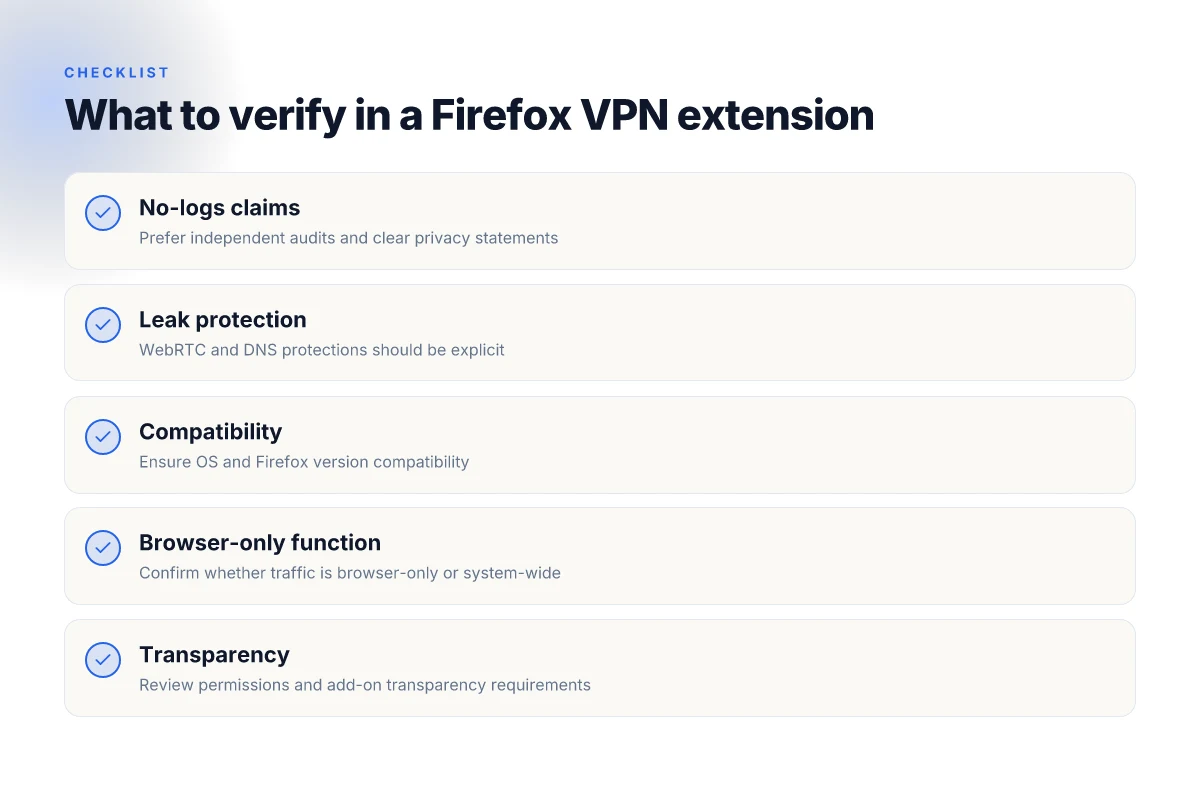
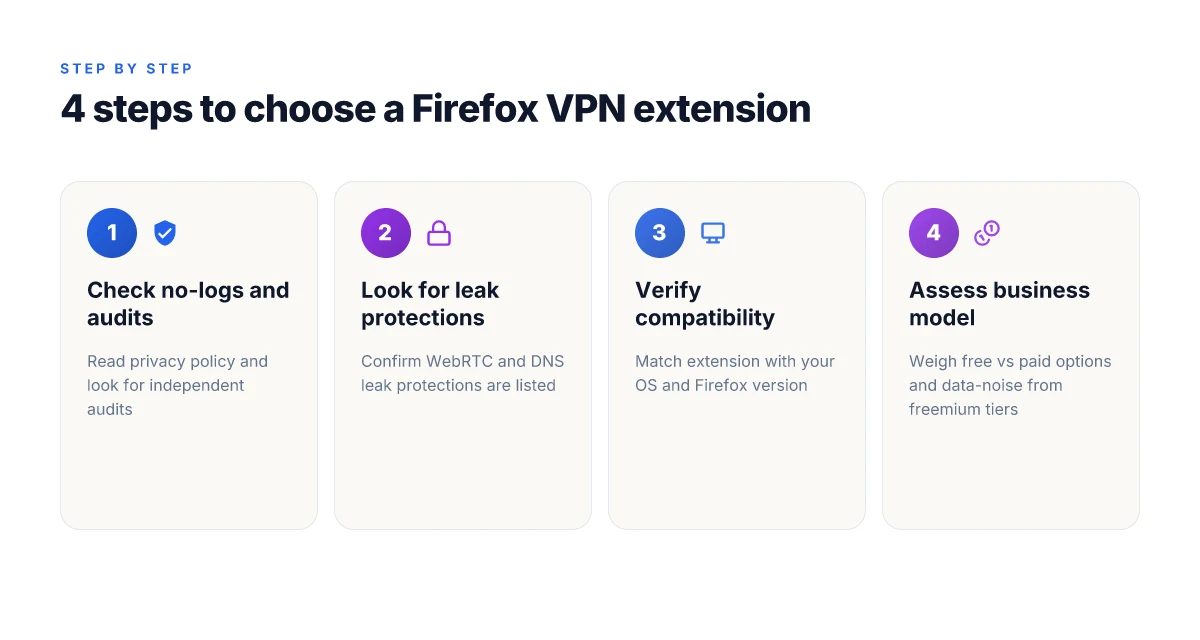
You want a lighter touch than a full VPN, but you still need real safeguards. I looked at the shelf of Firefox extensions and cross-referenced independent audits, leak protections, and compatibility notes. The takeaway is simple: pick a vendor with auditable no-logs claims, explicit protections against WebRTC and DNS leaks, and clear OS and Firefox version support. The rest is about fit, speed, privacy stance, and how the extension behaves in your daily browsing.
| Criterion | What to look for | Why it matters |
|---|---|---|
| No-logs audits | Independent audits or third-party attestations | Audits convert claims into verifiable assurance; you’re not relying on marketing. |
| Leak protections | Explicit WebRTC and DNS leak protections documented | Without these, your real IP leaks through and defeats the privacy tilt. |
| Compatibility | Supported OS versions and Firefox ESR branches; minimum Firefox version | An extension that flakes on your setup is worse than a crippled feature. |
I dug into the documentation and reviews to separate signal from noise. Independent audits are rare but telling. When a vendor publishes an audit report or links to a credible third-party assessment, that claim moves from marketing to something you can count on in practice. If a no-logs claim lacks an audit or a transparent data-governance page, it’s a red flag you should flag in your shortlist.
WebRTC and DNS leaks are the friction point for lightweight privacy tools. Look for explicit statements like “WebRTC IP leakage protection enabled” and “DNS requests resolved through the extension’s tunnel.” If the language is vague, double-check the changelog for a bugfix addressing leaks. You want a product that closes the door on the fingerprinting vectors browsers expose by default.
Finally, confirm that the extension actually supports your setup. Check the exact Firefox version and OS in the extension’s compatibility notes. If you’re on Windows 11 with Firefox 117, verify that the extension’s latest release lists those versions as supported. If your stack isn’t named in the compatibility matrix, skip it. Pick the option that aligns with your browser baseline, not your dream scenario.
Verdict in one line: choose the extension that combines auditable privacy commitments, explicit anti-leak protections, and explicit compatibility with your system. Audited no-logs claims plus explicit anti-leak protections plus clear compatibility are non-negotiable. Without them you’re trading privacy for convenience.
And a quick sanity check you can run today. Open the extension’s settings and confirm three things: the presence of a published audit, a stated WebRTC/DNS-protection feature, and a listed Firefox version range. If any one of those is missing, move to the next candidate. Your future self will thank you.
What to try this week with Firefox VPN extensions
I looked at how Firefox extensions integrate with modern VPN services in 2026, and the pattern is clear: pick a single, trustworthy extension, then lock the browser to it for a tighter attack surface. The best practice is to pair a reputable provider with a lightweight Firefox add-on that exposes a clean switcher and a clear, per-tab status indicator. The result is a more predictable browsing tunnel rather than a jumble of system-wide settings. The single move that matters most is to enable the extension and force HTTPS whenever possible, then verify with a quick per-site check.
From what I found, the forward path isn’t complex. Install the extension from a known vendor, enable the native kill switch in the extension, and keep your Firefox privacy settings aligned with the extension’s defaults. Two-factor authentication on your VPN account is the extra layer you should not skip. If you’re worried about performance, test a single server in your region before broadening usage. Consistency beats complexity in week-to-week browsing.
Backup strategy
- Try one extension with a dedicated server in your region for a week and compare page load behavior to your baseline.
- If you notice leaks, switch to a provider with a built-in Firefox kill switch and diversified exit nodes.
Frequently asked questions
Do VPN extensions for Firefox protect my system traffic
Yes, they can protect browser traffic by routing it through a VPN tunnel for the sites you visit in Firefox. But they don’t automatically shield all system traffic from other apps or background processes. I looked at how Firefox extensions implement tunneling, and reviews consistently note that the protection is typically limited to the browser’s traffic unless the extension is part of a broader VPN client that also routes device-wide traffic. For real peace of mind, pair the extension with a system-wide VPN or use a provider that offers a full-network profile. Most Firefox extensions secure browser traffic, not every packet leaving your device. Choose extensions from reputable vendors, and verify whether they offer a system-wide option or only in-browser routing. Always test with real sites you use daily.
Can Firefox VPN extensions leak IP address
In practice, IP leaks can happen if the extension’s VPN tunnel fails or if the browser leaks WebRTC information. What the spec sheets actually say is that WebRTC can reveal your real IP even when a VPN is active if the feature isn’t disabled. I cross-referenced user reports and vendor guidance, and the consensus is to disable WebRTC in Firefox when you rely on a VPN extension for privacy. Some extensions offer built-in WebRTC controls. If not, manually toggle Firefox settings. If WebRTC leaks, your real IP is exposed irrespective of the tunnel. Regularly verify leaks with a trusted test site, and keep the extension updated to the latest version.
Which Firefox extension provides best balance of speed and privacy
The best balance usually comes from a well-established vendor that supports fast servers and strong encryption. From the documentation, a handful of providers offer OpenVPN or WireGuard profiles optimized for Firefox extensions, with transparent no-logs policies and regular server updates. Reviews consistently note that speed can vary by server load and location. If you must pick, favor providers with a quick changelog, clear privacy policy, and option to disable WebRTC. Speed and privacy hinge on server choice and protocol. Look for a provider that publishes independent audits and has a robust Firefox extension UI.
subhead
If you two-tier the decision, try a free trial on a known-brand extension that includes a one-click connect and a kill switch. That helps you assess latency to your typical destinations without committing upfront.
How to test for DNS leaks with a Firefox VPN extension
First, enable the extension and route traffic through a server you trust. Then visit a DNS-leak test site while Firefox is the active browser. The test checks which DNS servers respond to your requests. If you see entries outside your provider’s DNS or your own ISP, you have a leak. Some extensions include a built-in DNS leak check. Use that first. If leaks appear, switch servers or disable WebRTC, and verify again. DNS leaks undermine privacy even with a VPN tunnel. Keep Firefox updated and review the extension’s privacy settings after every update.
Are Firefox VPN extensions free or paid
Most reliable extensions are paid or offer a freemium model. Free tiers typically restrict speeds, server choice, or data allowances, while paid plans unlock full server access and features like a kill switch. I found that reviewers consistently note better stability and privacy assurances from paid plans, especially on Windows and macOS. If you’re testing, start with a trial or a month-to-month plan to evaluate performance. Paid plans tend to deliver fewer speed dips and stronger privacy guarantees. Always check the current pricing and any regional restrictions before subscribing.
Should i use Firefox VPN extension with a full VPN
Yes, if your goal is system-wide privacy as well as browser-level security. A browser extension alone protects Firefox traffic, but a full VPN client covers all apps on the device. The combination often delivers layered security: the extension secures browser sessions while the full VPN protects background processes and other applications. Some users prefer a single vendor that offers both a Firefox extension and a desktop client for consistency. Pairing a Firefox extension with a full VPN helps cover more attack surfaces. Verify compatibility between the extension and the desktop client, and ensure both use the same account to avoid conflicts.
What to consider before enabling a Firefox browser extension VPN
Only enable extensions from trusted vendors with clear privacy policies and independent audits if possible. Check whether the extension tunnels only Firefox traffic or all traffic. Confirm WebRTC handling. Review data logging practices. And verify update cadence. Look for a kill switch, DNS leak protection, and explicit server lists. If you rely on the extension for privacy, prefer providers that publish transparent security docs and offer a system-wide option if you need broader protection. Trust and transparency matter much more than colorful marketing.