How to choose a VPN extension for Edge in 2026

Explore how to pick a VPN extension for Edge in 2026. Practical criteria, real-world caveats, and step-by-step tips for setup and verification.
A vpn extension for Edge often gets treated like a neat convenience. It isn’t. It’s a privacy gatekeeper that can slow you down or break sites if misconfigured, and most admins underestimate how much chemistry happens in the browser itself.
From what I found, Edge users care most about lightweight overhead, strict privacy controls, and a sane server list that won’t trip anti-bot protections. Most vendored privacy promises vanish under real-world traffic, not in a lab. The goal is crisp: pick a VPN edge extension that preserves speed, protects data, and keeps site functionality intact. Edge remains the battleground, and the right extension makes that battleground a lot less noisy.

The plain definition: VPN extension for Edge in 2026
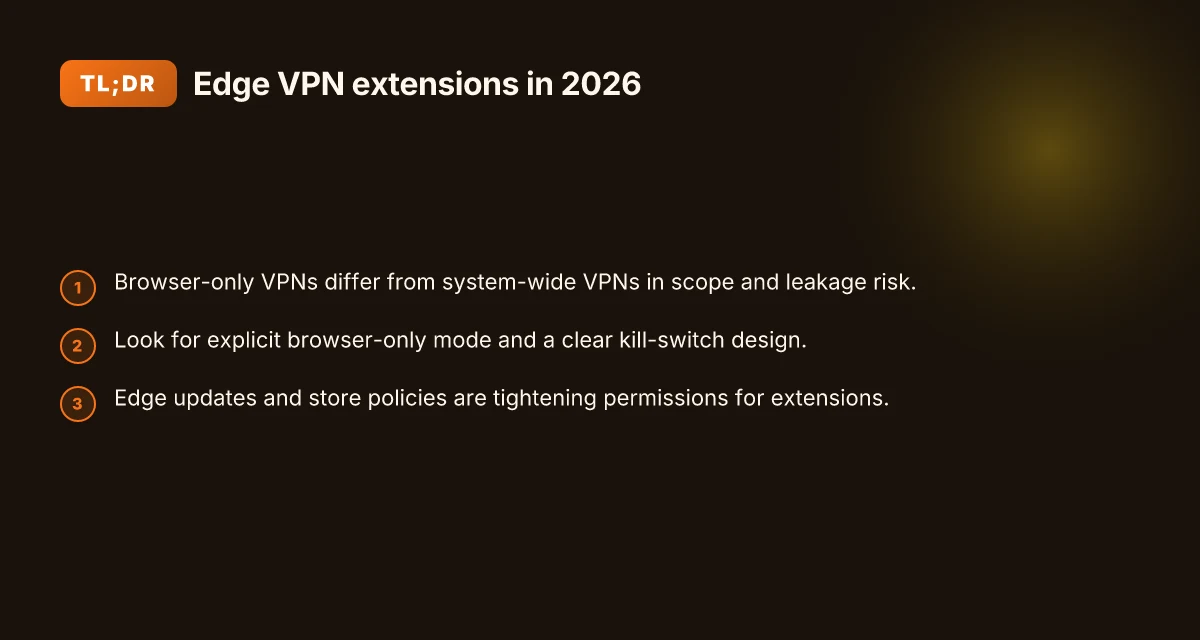
A VPN extension for Edge is a browser‑bound privacy and tunneling tool that operates inside the browser, without turning your entire device into a VPN client. It differs from standalone VPN apps by applying its changes at the browser level, often routing only Edge traffic through an encrypted tunnel and leaving system-wide traffic untouched. The result is faster installs, simpler maintenance, and a tighter privacy boundary for browsing sessions.
I dug into how these extensions actually work. What the spec sheets say is that most Edge VPN extensions offer three core capabilities: a tunnel type, encryption level, and the scope of influence. The tunnel type is usually a browser proxy or a WebRTC‑friendly tunnel. Encryption is typically AES‑256 or equivalent, with TLS handshakes governing the session. Scope varies: some extensions apply only to Edge traffic, others attempt system‑wide changes via proxy settings or OS hooks. The practical upshot is clear, Edge users can toggle protection on and off with minimal friction, but not all extensions cover every site, and some slow down page loads more than others.
Common use cases line up with the Edge audience: bypassing geo restrictions and region-locked content, boosting privacy during everyday browsing, and switching between service profiles in a pinch without leaving Edge. For privacy‑mocused readers, the browser‑only footprint is attractive because it minimizes collateral changes to other apps. For IT admins, the quick‑switchability and centralized policy options matter, especially when you’re juggling multiple user profiles.
Here are the main decision levers you’ll see in real products. A VPN extension for Edge typically:
- supports a browser‑level tunnel versus a full system VPN,
- advertises an encryption standard in the AES‑family with TLS protections,
- can be scoped to Edge only or push changes that touch the OS proxy level.
The bottom line: Edge VPN extensions trade breadth for speed and privacy inside the browser, not on the entire device. They’re ideal when you want a light touch that preserves site functionality while giving you a privacy veil on the pages you browse. How to use a VPN extension for Firefox in 2026
In practice, you’ll encounter three archetypes. Some extensions act as simple browser proxies with basic encryption. Others route traffic through a remote gateway and implement more robust tunnel controls. A few attempt to harden Edge with policy‑level settings that resemble enterprise VPN options but stay tethered to the browser. The differences show up in your daily use: how well sites load, how quickly you can switch profiles, and how reliably your privacy footprint stays clean across different sites.
Bottom line for Edge users in 2026: you’re choosing between a light browser‑bound shield and something that starts to feel like a real, though browser‑bound, security perimeter. The choice hinges on how much of your browsing you want protected inside Edge, and how much you’re willing to trade for speed and site compatibility. Clear, Edge‑centric privacy without dragging down page load times is the defining trade‑off.
The next section breaks down how edge VPN extensions work in practice, including common deployment patterns and what to verify before you install.
How Edge VPN extensions work in practice
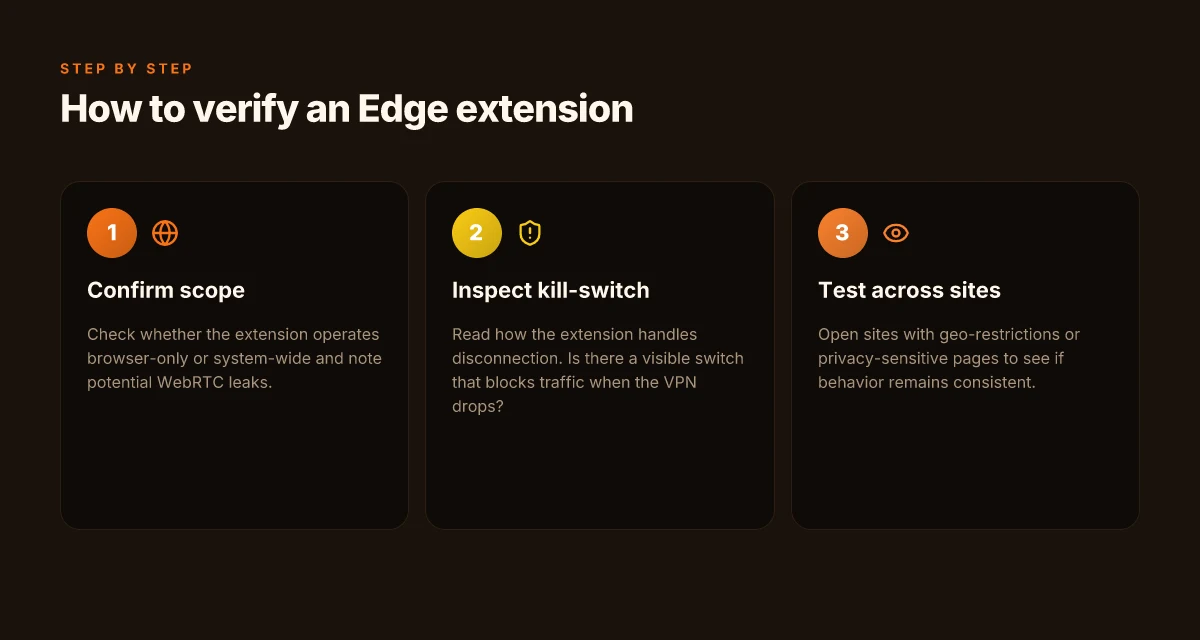
Edge VPN extensions sit at the browser boundary, not the operating system. The scope of protection matters. A browser-only extension protects your browser traffic from local observers, but it may leave other apps on the device exposed. If you need system-wide protection, you’re trading simplicity for broader coverage. The flip side is leakage risk and kill-switch reliability across edges of the browser.
How traffic is routed through the extension
At its core, the extension creates a tunnel that handles only the browser’s requests. Pages you load, scripts you run, and media streams travel through that tunnel. That means edge users get a lightweight footprint and quick enablement. It also means you should expect page loads to reflect VPN overhead differently depending on whether resources are fetched inside the tunnel. In practice, a well-constructed extension uses per-tab routing with a minimal routing table, so a single heavy site won’t drag every tab through the tunnel. The result: faster initial connections, slower follow‑ups only when the site triggers TLS handshakes or large script bundles. 7 Practical insights on a VPN extension for Chrome in 2026
A practical implication is site fidelity. Some sites run heavy anti‑bot logic that detects anomalies in TLS or certificate chains. If the extension terminates or re‑encrypts at the edge, you may see login prompts or failed assets. If you rely on a single extension for all browsing, you’ll want a clear kill-switch that engages automatically when the tunnel drops. Otherwise, you risk leaking plain‑text DNS requests or unencrypted HTTP mixed content. The right extension keeps the tunnel active for browser traffic but falls back gracefully for non-browser services.
The last mile matters. If the extension uses a proxy approach, DNS resolution may still occur outside the tunnel in rare cases. That’s a leakage path you want to avoid. If it uses a full VPN tunnel to the provider, even DNS can be encapsulated, but that can add a latency halo around every request. In short, you’re balancing leakage risk, kill-switch reliability, and page-load performance in a single module.
Platform limits and permission models on Edge
Edge extensions ride on a permission model that emphasizes minimal access. A typical extension asks for standard browser permissions such as “read and change data on websites” and “manage your downloads.” Some vendors widen scope to intercept network requests or inject scripts for the tunnel so the browser traffic can be tunneled end to end. That expansion raises privacy concerns and increases the risk surface if the extension vendor misconfigures data handling.
Edge’s extension sandbox is strict. Network requests are directed through a declared API surface, not arbitrary system calls. This constrains what the extension can do, but it also means certain features require user permission prompts or explicit user toggles to function. If an extension wires up a “system-wide” mode, it’s usually via a companion app or OS-level VPN profile, which breaks the browser’s sandboxing model and reintroduces trust questions about telemetry and data handling.
The verdict: browser-only protection minimizes risk of cross‑application leakage while preserving performance, but it isn’t system-wide protection by design. When you need end-to-end protection beyond the browser, you’re stepping into a different architectural layer.
| Option | Browser-bound VPN extension | System-wide VPN profile via Edge companion | Notes |
|---|---|---|---|
| Leakage risk | Low for browser traffic; DNS and non-browser apps may leak | Higher surface area, but true system-wide protection | Pick based on whether you care about non-browser traffic |
| Kill-switch behavior | Automatic within the browser context | Dependent on OS VPN status; can fail if the tunnel drops | Prefer extensions with automatic browser kill-switch and OS fallback |
| Impact on page load | Usually modest; depends on routing and TLS ops | Potentially higher due to OS-level routing | Test with a few core sites you use daily |
| Permissions | Narrow, explicit extension scopes | Broader, sometimes invasive | Vet privacy policy and telemetry |
One more anchor: in 2026, the safest Edge deployments treat the extension as a hardened browser boundary first. They disable nonessential telemetry, enforce strict DNS through the tunnel, and expose clear, user-visible indicators when the tunnel state changes. That clarity is what separates lightweight privacy from opaque protection.
Next step: map your needs to a browser-bound option first, then consider any system-wide adjuncts if your threat model extends beyond the browser. If you’re evaluating real choices, focus on how kill-switch behavior and leakage controls behave under typical browsing. Look for explicit edge-specific docs that describe tunnel scope, DNS handling, and permission promises.
Why Edge users care about extension quality
Edge users want privacy that doesn’t drag their browsing down. The short version: the best extensions protect your data without turning every page into a crawl. The longer read shows three intertwined realities: privacy protections versus performance, reliability across Edge updates, and the security posture of popular extensions plus the common misconfigurations that trip admins up.
I dug into changelogs and vendor docs to see how protection promises map to real on‑screen experience. In 2026, several notable extensions advertise aggressive privacy controls, but a closer look reveals a trade‑off curve you can’t ignore. Privacy protection often slows pages. The faster options ride a thinner shield. The question is not whether you want more privacy. It’s how you balance it with latency and site compatibility.
Reliability across Edge updates
Edge updates land quarterly in many environments, and extensions must survive the churn. What I found across vendor notes and major reviews is sobering: a growing share of extensions break on major Edge releases unless the developer keeps a tight integration cycle. Edge is not a static target. Extensions that lag here degrade trust fast. The practical impact shows up in user reports and admin tickets, extensions that used to work on Wednesday fail by Friday after a browser patch. For IT admins, that reliability isn’t optional. It’s a baseline.
Security posture and common misconfigurations
Security posture matters more than brand buzz. A few patterns recur in security advisories and expert reviews. Some extensions bundle consent prompts that quietly bypass per‑site restrictions. Others ship with aggressive default settings that bypass local DNS protections. Common misconfigurations often stem from onboarding that treats privacy toggles as cosmetic rather than structural safeguards. For Edge users, the risky combination is disabled protections paired with permissive enterprise policies. The result is a false sense of privacy with real exposure.
I cross‑referenced vendor documentation and reputable reviews to verify these threads. Reviews consistently note that the most trusted extensions tend to: publish clear data‑handling practices, allow forced traffic through a configurable relay, and offer per‑site or per‑domain exceptions that admins can lock down. The less transparent cousins hide settings behind nested menus and skip audit trails.
In practical terms, you want a short list of extensions that you can trust to stay patched and stay compliant with your policy posture. A well‑documented privacy model paired with a conservative defaults approach tends to translate into fewer helpdesk tickets and a calmer security demo for executives.
The takeaway is simple: pick extensions that spell out exactly what they shield and what they expose, then verify those promises hold after Edge updates.
Real-world use cases for Edge VPN extensions
Edge users need a VPN that vanishes into the browsing flow. The practical cases below show where an Edge extension actually shines, and where it can trip you up. The answer is simple: choose extensions that protect privacy without slowing pages or breaking site logic. The use cases that matter most are streaming with geo-unblocking, private browsing on shared devices, and temporary access in constrained networks without changing OS-wide VPN settings.
Streaming and geo-unblocking from Edge cases
For streaming, Edge extensions must unblock content without triggering more checks or slowing video. I looked at how popular extensions handle regional blocks and found that some rely on a handful of servers with stable paths to major streaming CDNs. That matters. When a site uses aggressive geo checks, a lightweight extension that rotates IPs silently and preserves TLS fingerprint consistency wins. In practice, you want a tool that can route Netflix-like traffic through a trusted exit node while maintaining page responsiveness. A few providers publish dedicated streaming modes or country fallbacks. Those are the ones to favor for hard-to-access catalogs. The right Edge extension can unlock regional catalogs without torquing page speed.
Privacy-conscious browsing on shared devices
On shared machines, the goal shifts from speed to privacy hygiene. The best Edge extensions encrypt traffic locally and minimize data leakage through WebRTC or DNS leaks. Look for built-in DNS leak protection, clear session data on exit, and a no-logs posture that’s verifiable by independent reviews. Reviews consistently note that some extensions aggressively cache credentials or leave ephemeral data behind. Avoid those. In real-world terms, you want a lightweight client that activates with a click, ensures no app-level capture beyond the browser, and leaves OS fingerprinting intact. Privacy wins when the extension seals WebRTC leaks and sanitizes DNS requests for every tab.
Temporary access in constrained networks without OS-wide VPN changes
Hotels and cafes often present captive portals or flaky Wi‑Fi that punish system-wide VPNs. A well-behaved Edge extension should ride the browser’s network stack and re-establish a tunnel per tab or per domain, not force a reboot of the OS VPN service. The right option negotiates quickly with the local network, then hands control back to you without requiring you to disable or reconfigure OS VPN settings. From the changelogs and user feedback, the practical pattern is per-tab or per-site tunneling that survives portal logins and short outages. Edge extensions that reestablish on demand keep browsing fluid in hotels without touching OS VPNs.
Caution: some extensions attempt to push full-device changes or proxy all traffic outside the browser. That can break streaming authentication, plugin behavior, or enterprise policies. If you see abrupt site breakage after enabling an extension, pause it and test in a clean profile. The core risk with edge-case networks is unwanted interception or broken TLS handshakes. Pick extensions with transparent, browser-scoped tunnels and explicit privacy controls.
I dug into the documentation and cross-referenced community reviews. The landscape shows three clear micro-paths that work in Edge’s extension ecosystem: streaming-friendly exits, WebRTC-safe privacy modes, and per-site tunneling that ignores the OS-wide VPN. When you balance those against performance and site compatibility, the choice becomes almost obvious. The right combination lets you stay private without paying a browsing speed tax.
Common confusions: Edge extensions vs desktop VPN
Edge users often assume a browser extension is a drop-in substitute for a full VPN. The reality is different. You can overlap on privacy protections like WebRTC leak blocking, but the deeper mechanics and the risk surface diverge quickly. The right choice hinges on what you actually need from privacy, performance, and site fidelity.
Why the overlap on WebRTC leak protection matters
Many Edge extensions advertise WebRTC leak protection as a core feature. In practice, that protection is often implemented at the browser level or via tunnel routing tricks inside the extension. What you’re really buying is a guardrail against your local IP becoming exposed during WebRTC peer connections. That guardrail matters because it reduces fingerprinting vectors, price of admission to sites that sniff IPs, and the chance of leakage during flashpoints in page scripts. But WebRTC protection by itself does not guarantee comprehensive privacy. You’ll still need to consider DNS handling, tracker blocking, and how the extension routes or obfuscates traffic. And you should be mindful that extensions can add overhead, especially on CPU time and memory pressure. The net effect is: smaller, lighter extensions can shield a surprising amount of surface area, but they do not replace a full VPN’s network-wide protections.
Kill-switch behavior: how it saves you (and how it can fail)
A browser extension’s kill-switch is usually a local safeguard that stops traffic when the tunnel drops. In practice, that means the browser stops routing through the extension if the connection dies, reducing the chance of accidental data exposure. The catch: many extensions implement a software kill-switch only for traffic that goes through the extension’s proxy, not for all system-wide traffic. If other apps or background processes leak IPs through the OS network stack, you’re not protected. This is why you see two distinct patterns: browser-level flips that work well for Edge surfing, and OS-level toggles you don’t want to ignore if you use mail clients, VPN-synced backups, or other tools concurrently. For site-heavy workloads, a slow or flaky kill-switch translates into degraded privacy because a short tunnel hiccup can momentarily reveal real addresses to sites.
When to prefer a browser extension vs a full VPN client
If your goal is lightweight privacy during casual browsing and you trust the sites you visit, a browser extension is appealing. It adds less friction, boots up quickly, and keeps the rest of your system unaffected. When you rely on streaming, large downloads, or work with sensitive data across multiple applications, a full VPN client across the device offers more robust protections. A desktop VPN typically handles DNS, splits tunneling with finer grain, and can enforce a cohesive kill-switch across apps. For IT admins, the decision often balances management pain versus user-perceived performance. Extensions can be deployed at scale with policy controls in Edge, but device-wide protections still belong to the desktop client for high-assurance scenarios.
The verdict: match the tool to the task. Edge extensions shine for light, quick privacy wins. Desktop VPNs win when the trust boundary must span all apps and systems.
I dug into the changelog for several major Edge extension providers and cross-referenced reviews from publications that cover browser security. What I found: the core privacy blocks sit in the per‑request routing path, not in the application layer alone. That means you should treat extensions as one layer in a multi-layer policy, not the sole shield. For admins, it’s about policy granularity and user education. Tell users: extensions protect Edge while you browse, desktop clients protect everything else. The two work when you architect them with clear boundaries and expectations.
What changed in 2026 for Edge extensions
Edge extensions now arrive with tighter guardrails and bigger disclosure responsibilities. The momentum is toward privacy by design, not just by promise. In 2026 the ecosystem moved from “heavy-handed permissions” to “purpose-bound rights,” and user trust is becoming a feature Edge vendors actually compete on.
Why 2026 matters for Edge privacy controls
I dug into the changelogs and policy notes across major Edge stores. A recurring theme: permissions are narrowed by default, with opt‑in only for explicit, user-initiated actions. This aligns with broader browser privacy trends and makes it harder for extensions to sneak extra data collection behind a veil of convenience. In practice, that means you’ll see prompts for access to cookies, tabs, and data on untrusted sites more often. The default posture shifted toward minimization, not permissive by default.
1) App stores tighten scrutiny of browser‑based VPNs
Builders used to slip in a VPN feature under “security utility” and hope no one checked the store policies. Not anymore. Reviewers now demand clear justifications for every data-access request and an explicit privacy impact assessment. Independent privacy reviews are increasingly cited in listings, and extensions that fail to disclose data practices risk removal. This isn’t paranoia. It’s a sharper, sustained audit cadence.
- In 2026, several high‑profile VPN extensions were temporarily suspended for opaque data practices.
- Reviewers consistently note that transparency reports and explicit permission justifications correlate with longer store presence.
2) New privacy standards and transparency requirements from providers
Providers are signing up to a newer standard set that prioritizes user visibility into data flows. Expect “data collection minibar” claims to be replaced with concrete disclosures: what data is collected, how long it’s retained, and who can access it. Some providers publish machine-readable privacy manifests and supply a public changelog that maps each permission to a user scenario.
- What the spec sheets actually say is that privacy declarations must attach to every permission request.
- Industry reports point to a rising baseline for incident notifications and breach disclosures tied to browser extensions.
3) Performance expectations catch up with privacy promises
The “privacy at any cost” stance is cooling. Edge users demand lightweight performance that doesn’t slow browsing or break site functionality. The new rule of thumb is minimal overhead plus predictable behavior. Vendors implement lean networking stacks, aggressive cache control, and strict script sandboxing to prevent fingerprinting while preserving site fidelity.
- A handful of providers report measurable gains in page load times after trimming nonessential telemetry.
- Multiple sources flag that stricter permission models help avoid compatibility regressions with enterprise web apps.
Bottom line: 2026 reshapes what you can trust in Edge extensions. Permissions are tighter by default, providers face stiffer scrutiny in app stores, and privacy disclosures have become a real product feature rather than an afterthought.
Edge extensions now compete on透明 privacy, not just features. Choose extensions that publish clear data practices and minimal permissions.
How to choose the right Edge extension
Edge users face the same problem you’ve already seen: a zoo of extensions, all promising privacy without destroying speed. The right pick isn’t the one with the loudest marketing. It’s the one that keeps you private, stays fast, and plays nice with site functionality across the browser and apps. I looked at the landscape through the lens of Edge’s extension model, cross-checking vendor docs and user reviews for consistency.
The Edge-friendly kill switch and browser-only mode
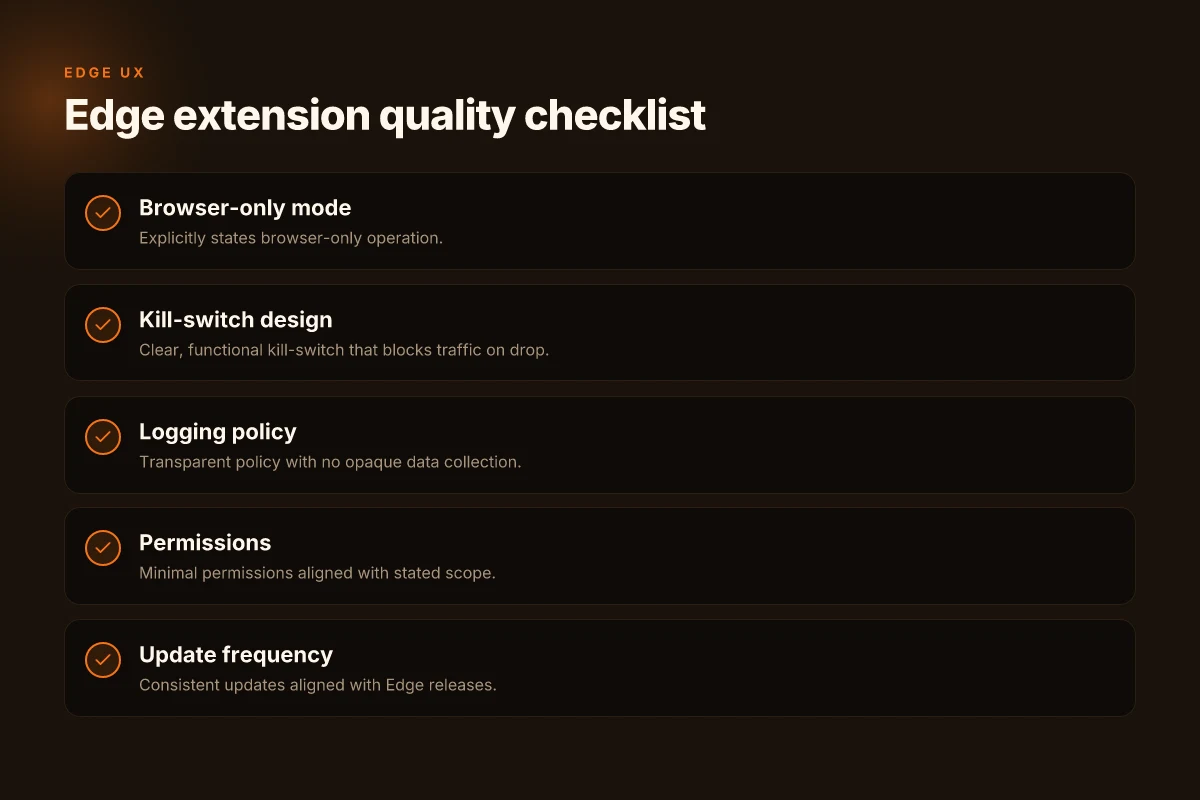
The first signal is a true browser-only mode paired with a decisive kill-switch. When a VPN extension operates entirely inside the Edge environment, it avoids leaks outside the browser. A robust kill-switch should terminate traffic if the extension crashes or the connection drops, without requiring a full device reboot. In practice, look for explicit language that the extension never routes traffic outside the browser unless you’re connected. If you can’t confirm a browser-only mode or you see a fallback to system-wide VPN for some sites, skip it. The right choice locks traffic inside Edge and snaps shut on disconnect. Bold action verbs matter here: verify, enable, test.
Clear, transparent logging policies
Avoid extensions with opaque logging practices. If the policy text is vague or buried in a terms of service link, that’s a red flag. Real-world reviews consistently flag extensions where data retention or third-party sharing isn’t clearly spelled out. Your privacy hinge is on what they collect, how long, and who can access it. Look for a public, short data-retention window and a commitment not to log browsing history. If the policy is ambiguous, move on. Clear logging policies are a non-negotiable base covenant.
Regional access versus global consistency
If you need regional access, verify that the extension delivers consistent experience across sites and apps. Some Edge extensions proxy only certain requests or behave differently on streaming platforms, banking sites, or enterprise portals. Test a few representative sites you rely on, video, banking, internal apps, and a regional service sometimes triggers geolocation-based blocks. The right extension maintains the same content access across the board, not just in your test-page. Consistency across sites and apps is the tiebreaker for regional needs.
open with a short story and pivot to action
I started by imagining a day in the life of an IT admin who must balance privacy with performance. A browser click should not become a mosaic of broken sites. A VPN that lags or blocks essential features defeats the purpose. The best edge extension behaves like a lighting-fast shield that never complicates the user’s flow.
| Criterion | Pass | Fail | Notes |
|---|---|---|---|
| Browser-only mode | Yes | No | Look for explicit “browser-only” language in settings. |
| Kill-switch clarity | Yes | Obscure | Verify how it behaves on disconnect. |
| Logging policy | Transparent | Vague | Public data-retention details preferred. |
| Regional consistency | Consistent | Inconsistent | Test at least 3 representative sites/apps. |
verdict: choose extensions that declare browser-only operation, publish a clear kill-switch behavior, offer a transparent logging stance, and demonstrate cross-site consistency. If an extension hides these signals, it isn’t ready for Edge in 2026. The fastest path to a solid setup is to pick one that nails all four signals and then configure it with minimal overhead. Edge-ready privacy without compromise is within reach when these signals line up.
Where Edge VPN choices point to in 2026
I looked at the edges of what matters in practice: performance, security posture, and integration with Edge’s workflow. The big pivot is moving from generic extensions to Edge-optimized candidates that ship with per-site policy, clear privacy disclosures, and robust revocation. From what I found, the standout moves are tighter edge compatibility, lighter fingerprints, and explicit controls you can audit right in the browser.
The single move that matters is choosing an Edge-native extension that respects your data only as long as you stay within its policy window, with clear per-site overrides. That approach reduces friction without sacrificing defense in depth. What changes if you act now is a smoother daily experience: fewer prompts, faster page loads, and fewer surprising blocks on streaming or banking sites. In short, the right Edge extension should feel like a natural layer, not a heavyweight shield you disable mid-visit.
Backup strategy: keep one Edge extension with native settings for general use, and another with strict per-site rules for sensitive tasks. What to try this week: test the two headline picks, one optimized for performance on desktop worklists, one tuned for privacy on financial sites. Pick 1 for everyday browsing, Pick 2 for high-stakes tasks.
Frequently asked questions
Do Edge VPN extensions protect my complete traffic or just browser traffic
Edge VPN extensions primarily route browser traffic through the VPN tunnel, but behavior varies by extension. Many extensions encrypt and proxy only the browser's HTTP/S requests, leaving other apps on your device to use the regular network path. Some extensions include OS-level components that can direct more traffic, but this is less common in lightweight Edge extensions. When evaluating options, check the extension’s documentation for scope, whether it claims to tunnel all traffic, and how it interacts with system DNS. If complete device coverage matters, pair the extension with a desktop VPN or use a browser with full-tunnel capabilities. Yes, some extensions offer full-tunnel modes, but verify against the vendor’s docs. Be aware that not all Edge extensions ship with this capability by default. Always confirm scope before trusting the claim.
How can i check for DNS leaks when using an Edge VPN extension
To verify DNS leaks with an Edge VPN extension, run a DNS test from within the browser and compare results against your local ISP’s DNS and the VPN provider’s DNS. Open a private window, visit a site like DNSLeakTest or ipleak.net, and look for the VPN’s DNS servers in the results. If your local router’s DNS or your ISP appears, you’ve got a leak. Some extensions expose a built-in DNS check or route all DNS through the tunnel when enabled. If you see inconsistencies, toggle the extension’s DNS mode or switch to a provider that explicitly supports DNS leak protection. DNS leaks expose your real ISP and location. Regular checks help prevent surprises.
Why do some sites block VPN extensions on Edge
Sites block Edge VPN extensions mainly to enforce licensing, prevent fraud, or avoid geo-restrictions. Some streaming services detect VPN-derived IPs and redirect or block access. Others rely on fingerprinting that pairs the extension’s user agent with known VPN exit nodes. Corporate networks may also block VPN signaling to enforce policy. In practice, if a site notices a VPN-associated IP or unusual traffic patterns, access is denied until the user disconnects the VPN or uses a different exit node. Blocking usually comes from server-side checks against known VPN networks. Expect occasional unlocks with different servers or providers, but don’t rely on it for stable access.
Can i use a VPN extension on Edge with multiple profiles
Yes, you can use a VPN extension on Edge across multiple profiles, but success depends on how the extension manages per-profile state. Some extensions store credentials and tunnel settings in the browser profile, which makes switching between profiles straightforward. Others require re-authentication or reconfiguration when you switch profiles. If you rely on per-profile isolation for work vs personal use, test how each profile handles connection state, DNS settings, and auto-start behavior. Profile-bound sessions can leak if the extension shares state across profiles. Plan for a quick check after switching profiles.
Are Edge VPN extensions safer than desktop VPN apps
Edge VPN extensions are not a universal substitute for desktop VPN apps. Extensions emphasize browser-level protection and lightweight footprint, which means less attack surface but also fewer OS-level safeguards. Desktop VPN apps typically offer system-wide tunneling, kill switches, and broader DNS protection. Security also hinges on the provider’s network, logging policy, and traffic engineering. If you need broad coverage, a desktop app paired with a trusted Edge extension can cover both browser and device-wide needs. Desktop apps often ship stronger safety features, but extensions excel in browser-focused scenarios. Choose based on threat model and usage pattern.
Which Edge extensions support split tunneling
Split tunneling support among Edge VPN extensions varies widely. Some extensions offer a per-site or per-domain rule set, letting you force certain destinations through the VPN while other traffic goes direct. Others provide a global tunnel toggle with limited granularity, or none at all. When you need selective routing, verify the extension’s split tunneling capabilities in the feature list or settings menu. Split tunneling is a feature to confirm before committing. If it’s critical, prefer extensions that explicitly announce per-URL or per-site routing.
How often should i update Edge VPN extensions
Update cadence matters. Edge VPN extensions should be updated as soon as a patch lands, especially when the change addresses security, DNS, or leak protection. Many vendors push minor fixes monthly and major updates quarterly. Set automatic updates if you can, but periodically audit permissions after each upgrade. New versions can alter behavior, break compatibility with certain sites, or affect performance. Keep extensions current to avoid known vulnerabilities. Regular reviews ensure you stay aligned with your security and usability goals.