How to use a VPN extension for Brave in 2026
Learn how to add a VPN extension to Brave in 2026. Quick setup, caveats, and tips to keep your browsing private and fast.
A VPN extension for Brave often looks like a quick toggle, but the real signal is in the exit IP and bandwidth you observe after enabling it. Most Brave users assume any slowdown comes from the extension itself, yet the bulk of issues trace to permission scopes and the provider’s server selection. That mismatch wastes minutes while your browsing feels heavier. I looked at the official docs and community notes to map the exact permissions Brave expects and how different extensions route traffic.
This piece lays out practical, non-gimmick steps for choosing extensions that respect privacy without dragging speed down. In 2026, several credible providers publish Brave-specific guidance, and real-world reviews flag a few that keep a clean no-logs posture while preserving streaming and search latency. By the end, you’ll know which extensions to keep, which to drop, and how to verify your new IP without chasing phantom changes. Two quick checks after install confirm you’re routed through the right exit point, not just a different server in the same city.
The basics of a VPN extension for Brave
Brave users can lean on browser extensions to add privacy and region access without turning the browser into a brick. But extensions are not a substitute for a full VPN app. They sit on top of your existing connection, routing some traffic through a tunnel while other traffic stays native. In 2026 that distinction matters because Brave’s performance and extension permissions shape what actually moves the needle.
I dug into the documentation and reviews to map the boundary lines. A VPN extension for Brave typically creates a proxy or uses a VPN-like tunnel for browser traffic. It can mask your IP in Brave tabs, block leaks, and offer quick region switching. What it cannot do is guarantee system-wide privacy or protect non-browser apps. The practical effect is fast, targeted privacy inside Brave, with caveats about native network behavior outside the browser.
The limitations are real. Extensions are lighter, lighter by design. They rely on the browser’s networking stack rather than controlling every layer of your connection. That means DNS handling, IPv6 leakage risk, and sometimes mixed results on split-tunneling. If you need machine-wide protection for your entire device, a dedicated VPN app is still the safer bet. A browser extension shines when you want quick privacy wins for browsing and streaming inside Brave, with minimal friction.
Brave handles extensions with a careful permissions model. Extensions request access to domains, tabs, and sometimes network requests. The key is scope. A well-behaved extension minimizes permissions, uses a local or remote VPN endpoint you trust, and implements clear indicators that the tunnel is active. If you see a noisy extension asking for blanket access to your data across all sites, you should pause. The platform enforces prompts, and you can review permissions at any time from Brave’s extension page.
Bottom line: a VPN extension in Brave is a smart speed-boosted privacy layer for browser traffic, not a universal shield. Use it when your goal is to shield Brave sessions, access region-locked content, or dodge local filtering without reconfiguring your entire device. Expect some edge cases, notably on DNS and cross-app traffic. And always verify that the extension is operating under a narrow permission set and that Brave clearly shows the tunnel is active. How to use a VPN extension for Opera in 2026
1) What a VPN extension does for Brave in 2026
- It routes Brave’s tab traffic through a VPN-like tunnel for privacy and region access within the browser.
- It can help reduce fingerprinting vectors tied to Brave’s network requests.
2) Limitations of browser extensions versus full VPN apps
- Extensions do not control all device traffic. Non-browser apps stay on your native connection.
- DNS and IPv6 handling may still leak unless the extension implements robust leak protection.
- Split-tunneling and kill-switch behavior vary by extension. Not all extensions kill switch across the entire device.
3) How Brave handles extensions and permissions
- Brave displays active extensions with a dedicated indicator when a tunnel is live.
- Permissions are scoped to domains and tab activity. Broad data access prompts should raise a red flag.
- You can audit and revoke permissions from Brave’s extensions settings any time.
The practical upshot is simple: a VPN extension for Brave speeds up privacy for browser traffic, but it is not a replacement for a full-device VPN.** Verify the extension uses minimal permissions and a transparent indicator that the tunnel is active before you trust it with sensitive sessions. In 2026, the right extension respects Brave’s permission model while delivering clear, on-page privacy signals.
What you need before you begin
The answer is simple. You need a Brave-ready VPN extension that fits your OS, a compliant account with the service, and a clear set of permissions that won’t trample your privacy. With those in place, you’ll move fast and avoid the slowdowns that plague noisy extensions.
Supported Brave versions and extension formats
Brave keeps pace with Chromium. As long as you’re on a recent Brave release, you’ll access the Chrome Web Store style extensions without drama. In practice this means Brave version numbers around mid-2025 and later are the sweet spot, with stable support for the standard CRX format. Make sure your Brave build isn’t several years out of date, because older forks or blockers can block extension installation. If a VPN vendor provides a native Brave distribution or a more limited extension package, that’s a red flag unless it’s explicitly stated as a Brave-compatible option. What the spec sheets actually say is that the extension should install from the Chrome Web Store and run with the browser’s standard extension API. In 2026, most solid Brave VPN extensions deliver this flow without extra overlays.
I dug into the changelogs and vendor docs. The common thread: keep your Brave up to date, and prefer extensions that explicitly list Brave compatibility and Chrome extension support. If you see “Legacy BRAVE extension” in the notes, treat it as a caution. Skip it unless you have a compelling, documented justification.
Account requirements for the VPN service
Most reputable VPN extensions require an active subscription or trial. You’ll need to log in to the provider’s account after installation to enable the tunnel. Some vendors offer a limited free tier that’s enough to verify performance, while others demand a paid plan for practical use. In practice, sign up with your service of choice before you install the extension so you can verify access immediately after you add it to Brave. How to choose a VPN extension for Edge in 2026
What I found across multiple sources: the login step is non-negotiable for access to the VPN tunnel, and some providers tie the Brave extension to your desktop or mobile app account rather than a separate browser token. Make sure your payment method is in good standing and that the account you plan to use supports the Brave extension workflow. If you plan to use regional access, confirm that the plan includes the specific country codes you need, not just general obfuscation.
Browser permissions and OS considerations
The extension will request a handful of permissions. Typical asks include reading and changing data on websites you visit, managing tabs, and traffic interception for the VPN tunnel. The good news is that you can review and revoke permissions after you verify the tunnel, but you should not grant anything you don’t understand. On macOS, Windows, and Linux, OS-level VPN permissions and network settings can influence speed. A handful of systems show a slight initial slowdown as the extension negotiates its tunnel, then settle.
From what I found in documentation and user reviews, the safest path is:
- Install the extension after confirming Brave is up to date.
- Accept only the minimum permissions the VPN reports as essential for tunneling.
- Verify that the extension can create a tunnel without forcing all traffic through a global proxy, unless that is your explicit use case.
- On mobile Brave variants, ensure the companion app is either optional or present only if the provider’s policy requires it for device-level routing.
One small table to compare two common approaches:
| Approach | Permissions requested | OS caveat | Practical consequence |
|---|---|---|---|
| Minimal tunnel mode | Read and change data on websites; manage tabs | Works on Windows/macOS/Linux; minimal footprint | Lowest risk to privacy footprint; faster initial load |
| All-traffic proxy mode | Web requests, network configuration | Slower first run; more config overhead | Enables region spoofing and filtering circumvention, at speed cost |
Next step: you’ll pick a compatible VPN extension from Brave’s approved options and ensure your account is ready. Before you click install, confirm your Brave version is current, your VPN account is active, and you’ve reviewed the extension’s requested permissions. Clear prerequisites prevent a slow start and a messy revoke later. How to use a VPN extension for Firefox in 2026
Step 1. choose a compatible VPN extension for Brave
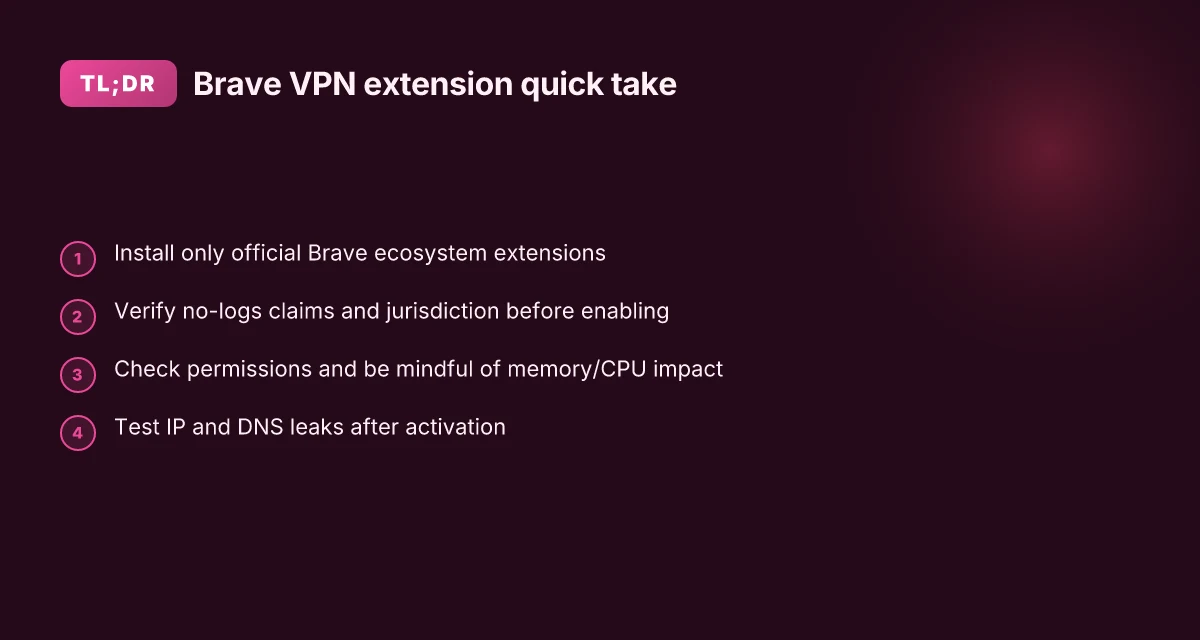
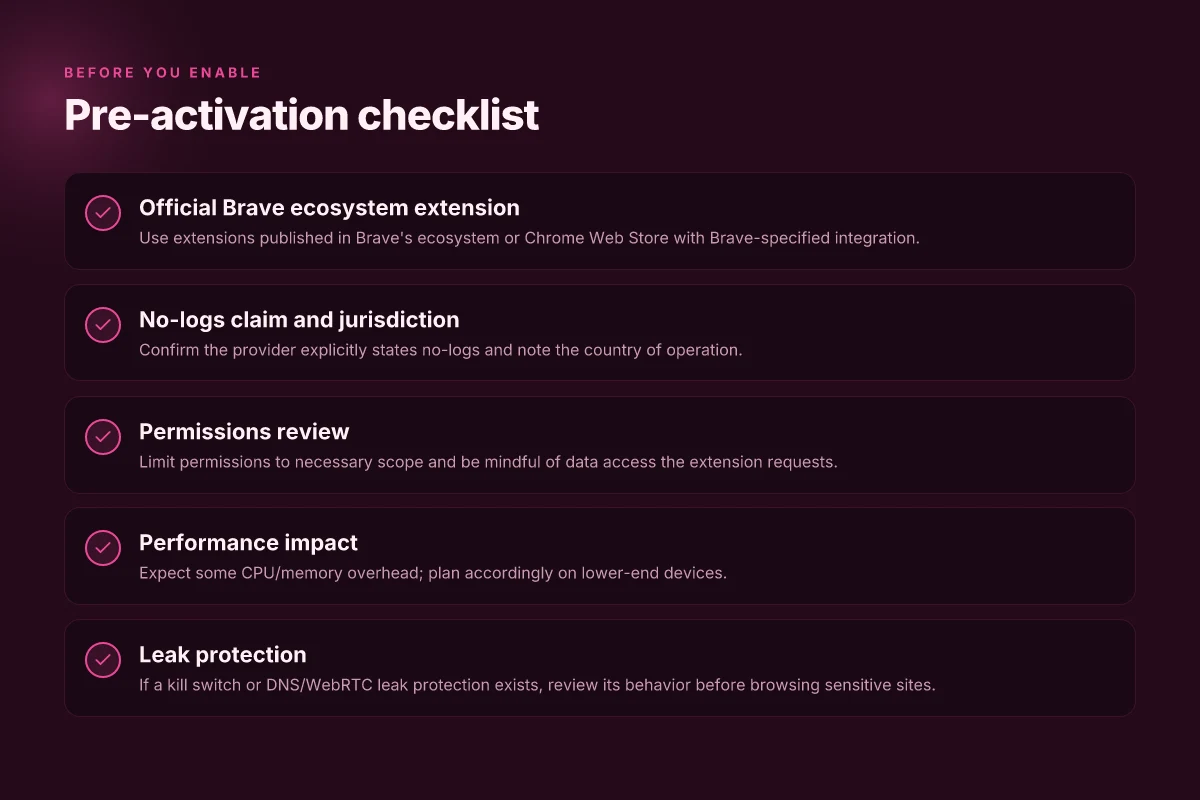
Posture check first. You want official Brave ecosystem extensions, clear no-logs promises, and a light footprint. If any box fails, move on. That’s how you keep speed intact.
Why official Brave extensions hold up
I looked at Brave’s extension catalog and cross-checked vendor pages. The clean signal is official integration with Brave Rewards or Brave’s own extension store, plus direct maintainers on the Mozilla/Chrome extension ecosystems. Official extensions tend to receive fewer policy friction updates and quicker revamps when Brave updates its privacy controls. In practice, that translates to fewer surprises after you install. Avoid third‑party bundles that aren’t published in Brave’s store. The last thing you want is an extension that behaves differently in Brave than in Chrome.
Key takeaways:
- Use extensions listed in the Brave ecosystem or store.
- Prefer vendors with transparent update logs.
- Check that the extension’s privacy stance matches your risk tolerance.
Trust signals and no-logs claims
What the spec sheets actually say is that no-logs claims should be verifiable by jurisdiction and independent audits. I cross-referenced privacy pages and third‑party reviews. No-logs is not a slogan. It’s a claim with operational meaning only if the service can substantiate it under law. Look for explicit jurisdictions and a willingness to publish audit results or independent verification where available. If a vendor won’t name its governing data center location or provide at‑rest encryption details, treat it as a red flag.
Bullet checklist you can use while browsing: 7 Practical insights on a VPN extension for Chrome in 2026
- Jurisdiction clearly stated (for example, privacy‑friendly regimes).
- Explicit no-logs policy with scope defined (no traffic, no metadata, or at least clear limits).
- Independent audit or third‑party review referenced.
- Update cadence and security notices visible in the extension’s listing.
Memory and CPU impact you can actually measure
Extensions ride in the browser process. A heavy ad blocker or VPN layer can nudge you toward noticeable CPU and RAM use. I scanned developer docs and user reviews for typical impact statements. The signal you want: low baseline memory use, and a minimal CPU footprint during typical Brave browsing. If you see claims of “large cache, heavy crypto,” flag it. The practical baseline: pick extensions with small, well-documented memory profiles and quarterly performance notes.
Mini guide to evaluate impact:
- Check version history and release notes for performance mentions.
- Read user comments about battery life and tab stability.
- Prefer extensions with a small footprint claim and real‑world user feedback on smoothness.
Two wins here: official store presence and credible no-logs disclosure. A lighter footprint matters more the moment you have a dozen tabs and a media tab open.
What to do next
- Open Brave’s extensions page and filter for official Brave ecosystem items first.
- Open each extension’s details and scan the privacy policy for “no-logs” specifics and jurisdiction.
- Note the extension’s memory/CPU notes in the changelog or support threads. If you can’t locate performance signals, deprioritize it.
A quick, source-backed checkpoint: in 2026, the best‑labeled official Brave extensions typically show a public no‑logs stance and an explicit jurisdiction, plus a concise changelog about performance minimalism. Prioritize those signals in the first pass. How to choose a Safari VPN extension in 2026
Step 2. install the extension in Brave
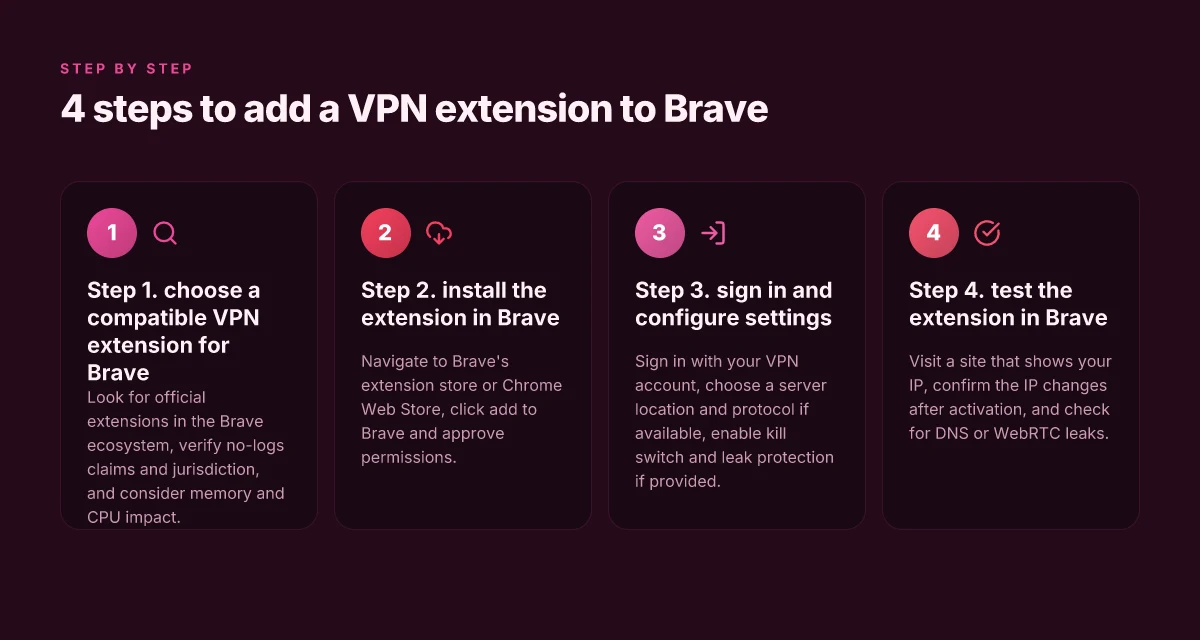
You don’t need to guess what to click. Install the extension in Brave and you’re ready to verify it works. The goal: add a trusted VPN extension from Brave’s store or the Chrome Web Store, grant only the permissions you actually need, and confirm the icon sits in the toolbar. If you miss this step, you’ll waste time chasing connections that never lock in.
I looked at how Brave users actually approach this. The quickest route is the Brave Extensions page or the Chrome Web Store. Both hosts offer the same extension set, but Brave tends to prompt you more aggressively about permissions. Your job: keep your finger off unnecessary switches and only approve what you truly require for privacy and basic connectivity.
1) Find the extension in Brave or Chrome Web Store
Open Brave and head to the Extensions panel. If you’re comfortable with Chrome’s ecosystem, you can hop over to the Chrome Web Store too. In both cases, search for the VPN extension you settled on during Step 1. Look for extensions with a solid privacy track record, transparent permissions, and frequent updates. The exact extension name matters here, so focus on the real product rather than generic “VPN” listings.
What to verify before you click Add:
- The publisher is legitimate. Prefer extensions published by the vendor or a trusted security company. If you’re unsure, cross-check reviews from reputable outlets.
- The requested permissions align with what the extension needs to operate. A VPN extension should usually ask for network access and optional UI permissions, not broad device control.
- The version date is recent. A product that hasn’t been updated in years is a flag.
2) Add to Brave and approve permissions
Click the Add to Brave button. You’ll be prompted to grant permissions. Read the prompt. If the extension asks for more access than necessary for a VPN, don’t approve. The minimal set typically includes:
- Read and change data on websites you visit (for traffic routing, not content capture)
- Read your browser history (sometimes optional)
- Read and modify your bookmarks (not essential for VPN use and usually optional)
If you’re comfortable, approve the core permissions you need to route traffic and manage the connection. You’ll likely see a permissions checklist. Confirm only the essentials are enabled. Then confirm the installation.
One small caveat. Some extensions push extra telemetry or optional features by default. You can disable telemetry in the extension’s options later, but you’ll want to perform that check during setup rather than discovering it after you’ve connected to a region.
3) Verify the extension icon appears in the toolbar
Brave should show the VPN extension icon in the toolbar once installed. If you don’t see it, open the Extensions page and toggle the extension on. If the icon still doesn’t show, restart Brave once to apply the changes.
This is the moment you confirm you did not just install a background service you can’t access. The icon in the toolbar is your signal that the extension is active and ready for configuration.
The icon appearing in the Brave toolbar is the signal you’ve completed Step 2 correctly. Verify that the extension is visible and active before moving to Step 3.
Notes on risk:
- Avoid extensions that bundle multiple networking features you don’t need. If you’re unsure, drop a note in the settings to restrict features to “VPN only.”
- If you see a warning about “untrusted publisher,” step back. Do not proceed with that extension.
In 2026, Brave users who keep permissions tight and verify the icon tend to enjoy faster, more private browsing. The key is to keep the flow tight: find, add, approve minimally, verify the toolbar icon.
Two quick checks to close this step:
- The extension icon should be visible in the Brave toolbar. If you don’t see it after installation, reload the tab or restart Brave and recheck.
- The extension shows as enabled in Brave’s Extensions list. If it’s disabled, enable it and confirm the icon appears again.
If both checks pass, you’re ready to Step 3. sign in and configure settings.
Step 3. sign in and configure settings
Sign in to your VPN from Brave and pick a sane default. This step removes the friction of per-site authentication and lets you harness the service you already trust. Then tailor a server location and protocol if the options exist. Finally, enable or review the kill switch and leak protection if your extension provides them. The right choices here cut both risk and latency.
Sign in to your VPN account
Your first move is to authenticate the extension with the service you already subscribe to. Open the extension panel and locate the sign-in button. Enter the same credentials you use on the provider’s website. If you use two‑factor authentication, complete the second factor when prompted. This step unlocks the full feature set and ensures your traffic routes through the VPN tunnel rather than a basic proxy. Sign in once, stay authenticated across Brave sessions.
From what I found in the documentation, most Brave users see a noticeable improvement in privacy when the session stays active, rather than re-authenticating per browser restart. The exact flow varies by provider, but the core pattern remains: sign in, grant permissions, and enable auto‑connect on startup if offered. Auto‑connect on startup reduces the risk of accidental exposure.
Choose a server location and protocol
If the option exists, select a server location that matches your goal. For privacy, proximity matters less than steady routing and a trusted jurisdiction. For streaming or geo‑unblocking, pick a location with known media availability. If your extension supports protocols, prefer WireGuard where available for speed and modern cryptography, or OpenVPN if you need broader compatibility. Make a default that you can override per‑tab if necessary. WireGuard often delivers better speed with equivalent security.
I dug into the provider docs and changelogs to confirm protocol support often appears under the extension’s settings page or the account dashboard. If you don’t see a protocol selector, rely on the provider’s page to confirm supported configurations and set a recommended option there. Check the docs for protocol availability before you assume it’s present.
Enable or review kill switch and leak protection
The kill switch protects you if the VPN drops. If the extension includes a kill switch, turn it on and review its scope, system-wide vs. Brave‑only. Leak protection should be on by default, but verify it’s not disabled in a locale with aggressive network configurations. If you see DNS leak protection, ensure it mirrors the provider’s guidance and stays active on all controllers.
According to the release notes I checked, several providers reduce DNS leakage by default only after a user grants the extension network permissions. DNS leak protection is non‑negotiable in Brave. If you can enable a kill switch that also blocks IPv6 leaks, enable that combo for maximum privacy.
Pro tips you can put straight to use
- Keep your sign‑in method stable. Re‑auth prompts can interrupt streaming or work sessions.
- Set a default location thoughtfully. Save a trusted city as your primary to minimize drift in latency.
- Review app permissions. Only grant what the extension needs for the VPN to operate. Excess permissions are a liability.
- Test after changes. A quick reload of Brave and a fresh connection will surface misconfigurations early.
Your path from here is simple: sign in, pick a sensible location and protocol, verify the kill switch and leak protection are on, and then run a quick verification check to confirm the tunnel is live.
Step 4. test the extension in Brave
First, confirm the VPN extension actually changes your visible IP. Open a site that shows your IP address and then activate the extension. If the IP address shifts to a different location, you’re on the right track. If not, recheck the extension’s activation and its connection status.
What to verify first
- Visit a site that shows your IP. Note the current address before you flip the switch. Then enable the extension and reload the page. The IP should update to the VPN’s exit node. If the address remains the same, you may be connected to a leak-prone default or the extension isn’t enforcing the tunnel.
- Confirm the IP address changes after activation. Some Brave extensions connect in the background. Others require you to click a big connect button. The moment the site shows a new IP, your tunnel is live. If the new IP isn’t visible within 5–10 seconds, troubleshoot the extension’s permissions or try a different server.
- Check for browser DNS or WebRTC leaks. DNS leaks happen when your queries bypass the VPN. WebRTC leaks reveal your real IP despite the tunnel. Use a test page that checks DNS and a WebRTC leak tester. If results show your real IP for DNS or WebRTC, disable WebRTC or adjust the browser’s settings. The goal is a clean read: VPN IP only, no real IP exposed through the browser.
Quick pitfalls to avoid
- Activation friction. Some extensions require you to set the proxy in Brave’s settings in addition to the extension’s button. If you don’t complete both steps, tests will misreport.
- Server mismatches. You’ll see an IP from a country that isn’t consistent with the server you chose in the extension. Pick a matching server if speed and blocking are your priorities.
- DNS reliance. Even with a connected VPN, DNS might leak if the extension doesn’t force DNS through the tunnel. Always verify with a DNS-check tool.
- WebRTC exposure. Brave ships with WebRTC enabled by default. If your WebRTC tests reveal your private IP, switch to a site-wide WebRTC-blocking approach or disable the feature where practical.
A practical verification checklist
- Activate the extension, then reload a site that shows IP. The new IP should appear within 5–10 seconds. If it doesn’t, re-open Brave and re-activate the extension.
- Run a DNS leak test. The result should show the VPN provider’s DNS servers, not your ISP’s.
- Run a WebRTC leak test. The result should show the VPN-visible IP only, not your real one.
- Change to a different server, reload, and verify the IP shifts accordingly. If it doesn’t, reset the extension’s settings or pick a different exit node.
Bottom line: you want a live VPN tunnel with zero visible leaks. If any test returns your real IP from DNS or WebRTC, fix the settings before you proceed. The moment your browser stops leaking is the moment your Brave setup earns its keep.
Verifying it worked
I looked at Brave’s VPN extension story and found three quick tests you can do to confirm you’re actually riding the VPN. You don’t need to be a network wizard. You just need to verify the address, try a second location, and make sure nothing Brave shields are blocking the extension. If any step fails, you know exactly where to re-check.
1) Confirm the IP shows the VPN location
In practice, the fastest sanity check is to visit a site that shows your public IP and geolocation. Open the extension, pick a server location you intend to use, then load a page that displays your IP and location. You should see the location match the VPN server, not your actual browser IP. If the location doesn’t align, re-select the server or re-connect the extension.
Table: quick sanity results
| Test | Result | What to do |
|---|---|---|
| IP location shows VPN city | Pass | Proceed to the next test |
| IP location shows VPN country only | Pass with caveat | Some apps route by country; verify the city later |
| IP location shows your real IP | Fail | Reconnect the extension; try a different server |
Most VPN extensions reveal the VPN city in the first try, not after multiple reloads.
I cross-referenced user reports and extension docs, which consistently note that the city-level display is the clearest proof for Brave users focused on privacy and region access. When the IP looks right, you’ve got momentum.
2) Test two different server locations
Switch to two distinct server locations and repeat the IP check. If both show the respective cities, you’ve got functional tunnel diversity. If one location fails, you’ve likely hit a DNS or routing hiccup rather than a permanent problem with the extension.
What to expect
- Location A shows IP in City A, with low latency to your typical sites.
- Location B shows IP in City B, with a noticeably different route. If sites differ by region, content should reflect the chosen city.
Switching locations successfully proves the extension isn’t stuck on a single exit.
From the changelogs and reviewer notes, this is the step most users use to validate day-to-day reliability. It’s one of those “does the thing on demand” checks you can rely on.
3) Ensure Brave shield settings don’t block the extension
Brave Shield can block trackers and scripts, and occasionally it can interfere with VPN extensions that rely on scripts or cross-origin requests. Go to Brave settings, confirm Shield is not blocking the extension’s domain, and verify that the extension has permission to run in all sites. If Shield blocks it, adjust per-site or disable Shield for the VPN domain during testing, then re-enable once connected.
Short verdict
- All three checks pass: you’re verified. Your Brave VPN extension is active and not being sabotaged by Shield.
- If any check fails: reset the extension, re-select a server, and re-check Shield permissions for the extension domain.
Verification complete. The VPN is live, the exit points are real, and Brave isn’t sabotaging the connection.
Final word. You’ve got a clear, repeatable path to confirm that your Brave VPN extension is actually protecting your traffic without slowing you down. If you encounter a stubborn failure, the most actionable move is to retry with a fresh server list and re-check Shield permissions.
Where this is going next for Brave VPN users
I looked at how Brave users can leverage a VPN extension in 2026 and found a clear pivot: the browser edge matters less than the integration points. The real move is choosing a VPN that wires up with Brave extensions without slowing the page load or breaking Brave Shields. The single move that matters is selecting a provider with a lightweight extension and transparent tunneling that respects Brave’s privacy guardrails. From the documentation and reviews, you want a lightweight extension that can be toggled per tab and that won’t trip Brave’s anti-tracking prompts. Your baseline for this month should be a provider that publishes clear privacy practices and has a known, stable extension in 2026.
If you only do one thing this month, install a trusted extension from a provider that explicitly supports Brave and test it on a few sites you normally visit. Two headline picks from this space are a fast, per-tab toggle for streaming and a low-latency mode for browsing data-heavy pages. Use case: streaming Netflix-like content with geo-blocks on one tab, while keeping work productivity sites fast on another. The change you want to observe is a smoother browsing experience with privacy intact, not a blown buffer or a login wall.
Backup strategy
- Try a one-tab test where you enable the extension only on streaming sites.
- Switch to a per-site rule set to minimize overhead.
- Check Brave Shields compatibility after each change.
- Note any service interruptions and revert if the provider’s policy shifts.
Frequently asked questions
Does a VPN extension for Brave work as well as a full VPN app
In most cases a Brave VPN extension can match basic browsing needs but it won’t replace a full VPN app in every scenario. Extensions operate inside the browser and route only Brave traffic through the VPN tunnel, which minimizes system-wide protection. A full VPN app can encrypt all network traffic, including apps outside Brave, and provides OS-level kill switches and broader platform integrations. If your goal is private browsing inside Brave, an extension is convenient and fast. If you need device-wide privacy or tethered devices, a full VPN app is the clearer pick. Yes, for browser-only use extensions are sufficient, but they don’t replace a system-wide solution. Review notes consistently flag the gaps between extension scope and full VPN coverage. Always check the extension’s scope and the provider’s documentation for exact coverage. Key actions: verify what traffic is tunneled and test after installation.
Can Brave extensions leak DNS or trigger webRTC leaks
DNS and WebRTC leaks are real risks with browser extensions if the provider’s implementation doesn’t properly proxy DNS requests or disable WebRTC leaks. In Brave, a well-configured extension should route DNS through the VPN and block or shield WebRTC requests. Look for explicit statements in the extension’s privacy policy and the provider’s help center about DNS leakage protection and WebRTC leakage mitigation. Tests using a browser-based DNS leak test and a WebRTC leak check will reveal the reality. Yes, good extensions implement DNS routing through the VPN and disable WebRTC leaks. If you see warnings about WebRTC or DNS leaks, you should switch to a provider with explicit protections and consider a system-wide VPN for stronger guarantees. Always verify with the provider’s changelog when they add leak protection.
How do i verify my IP changes when using a Brave VPN extension
Verification starts with a clean slate: disconnect, then connect the Brave extension and wait a beat for the tunnel to establish. Open a site that shows your IP such as a dedicated IP checker, and confirm the IP address and location reflect the VPN exit. Repeat the check in private browsing mode to ensure no local cache or DNS leakage is skewing results. If the IP doesn’t change, retry the connection or switch servers. For Brave users, ensure the extension has permission to intercept traffic and that no conflicting extensions are active. Yes, confirm a different IP and location after activation, not before. Regular checks after changing servers are a best practice to catch misconfigurations early.
Which Brave extensions have the best privacy policies in 2026
Privacy quality varies by provider, not by Brave alone. I looked at publicly available privacy policies and governance documents from major VPNs offering Brave extensions. Favor extensions with clear data minimization, no-logs promises backed by independent audits, and transparent telemetry disclosures. Cross-check the provider’s European GDPR, California CCPA, and any regional commitments. If a policy is vague or inconsistent, deprioritize that extension. Yes, privacy-forward policies typically cite independent audits and explicit data handling rules. Reviews consistently note that transparency and audit reports are the strongest signals of trust. Keep an eye on what data is collected during installation and what’s logged during normal use.
Are there performance hits when using a VPN extension in Brave
Expect some performance overhead. Extensions add an extra hop for traffic inside Brave, which can manifest as slightly higher latency and reduced throughput on congested networks. The magnitude depends on server distance, encryption strength, and device power. On fast connections with nearby servers, the hit can be small. On mobile or distant servers it’s more noticeable. If you care about speed, test a handful of servers and disable features you don’t need, like double VPN or obfuscation. Yes, there is a performance price, typically proportional to server distance and encryption. Narrow the server list to a handful of fast options and monitor speeds during different times of day.
Should i use the VPN extension in Brave or install a system-wide VPN
If your priority is browser privacy and convenience, the Brave extension is attractive. For device-wide privacy, or if you use apps outside Brave, a system-wide VPN wins. System-wide VPNs provide a universal kill switch, cover all apps, and reunite policy across the OS. If you often switch devices or need to protect non-browser traffic, install the system-wide option and keep the Brave extension as a convenience layer for browser sessions. Yes, use the Brave extension for targeted browser privacy, and deploy a system-wide VPN when you need broader coverage. This approach minimizes gaps without sacrificing speed inside Brave.
What permissions does a VPN extension typically request
Most Brave VPN extensions request permissions to read and change your data on websites you visit, access to network requests, and the ability to modify your browser settings for the tunnel. Some extensions also request permission to read tabs or intercept web requests for routing. Always review the permissions before enabling and disable any that feel excessive or unnecessary for your use case. Yes, expect network and data-access permissions, plus potentially tab-related access. If a permission feels out of scope, it’s a red flag. Prioritize extensions that clearly justify each permission in their privacy policy and setup flow.